Administrators can create and manage user accounts in Newired Portal, assign one or more roles, control whether an account is active, and reset user passwords.
For a comparison of the available roles, see User Roles and Permissions in Newired Portal.
Before You Begin
- Sign in with a user that has the Administrator role.
- Each user must have at least one role.
- A user's login cannot be changed after the account is created.
Create a User
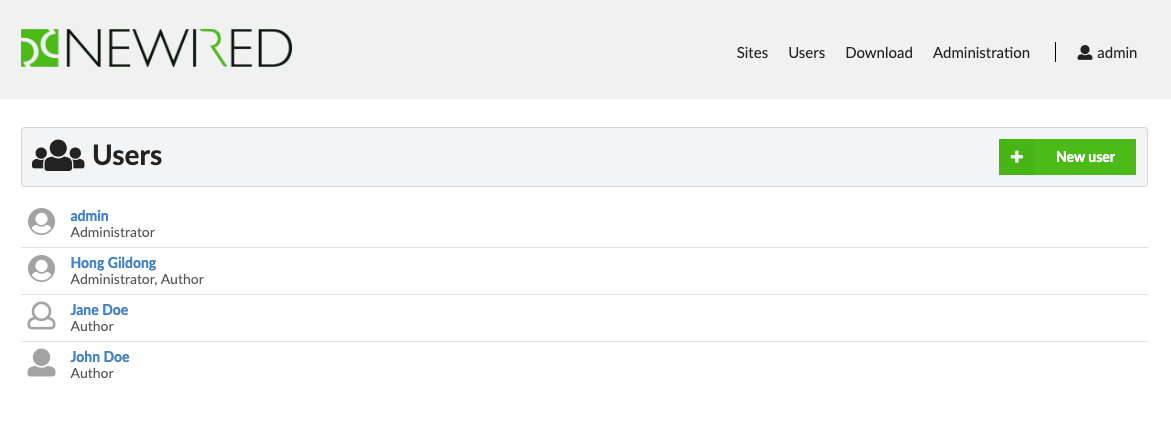
- Open Users from the top menu.
- Select New user.
- Enter the login, password, first name, last name, and email address. Description is optional.
- Under Roles, select Administrator, Author, or both.
- Keep Active selected to allow the user to sign in, or clear it to create an inactive account.
- Select Save.
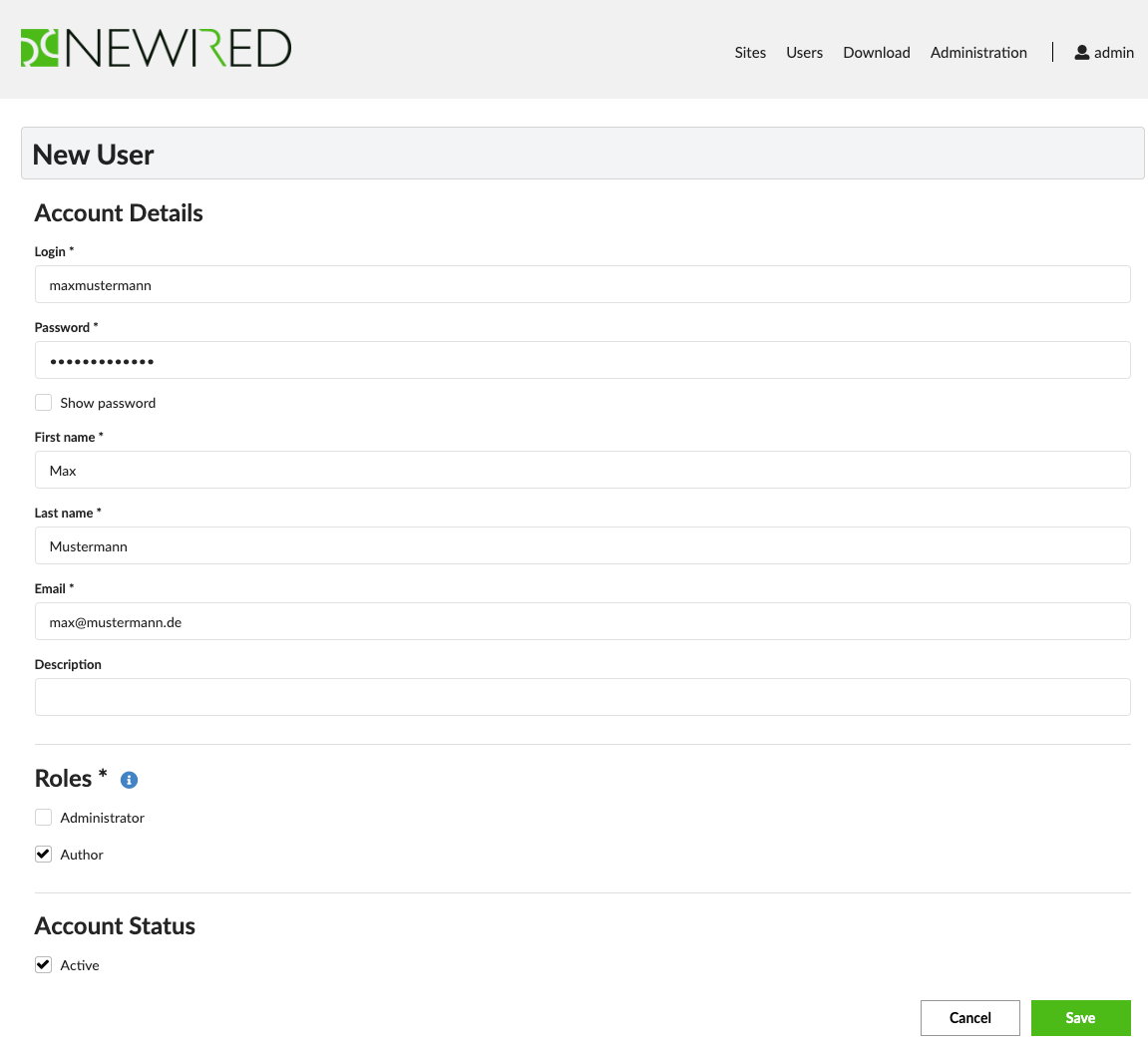
The new account is saved with the selected roles and status.
Edit a User
- Open Users.
- Select the user you want to edit.
- Update the account details, roles, or active status. The login is displayed as read-only.
- Select Save.
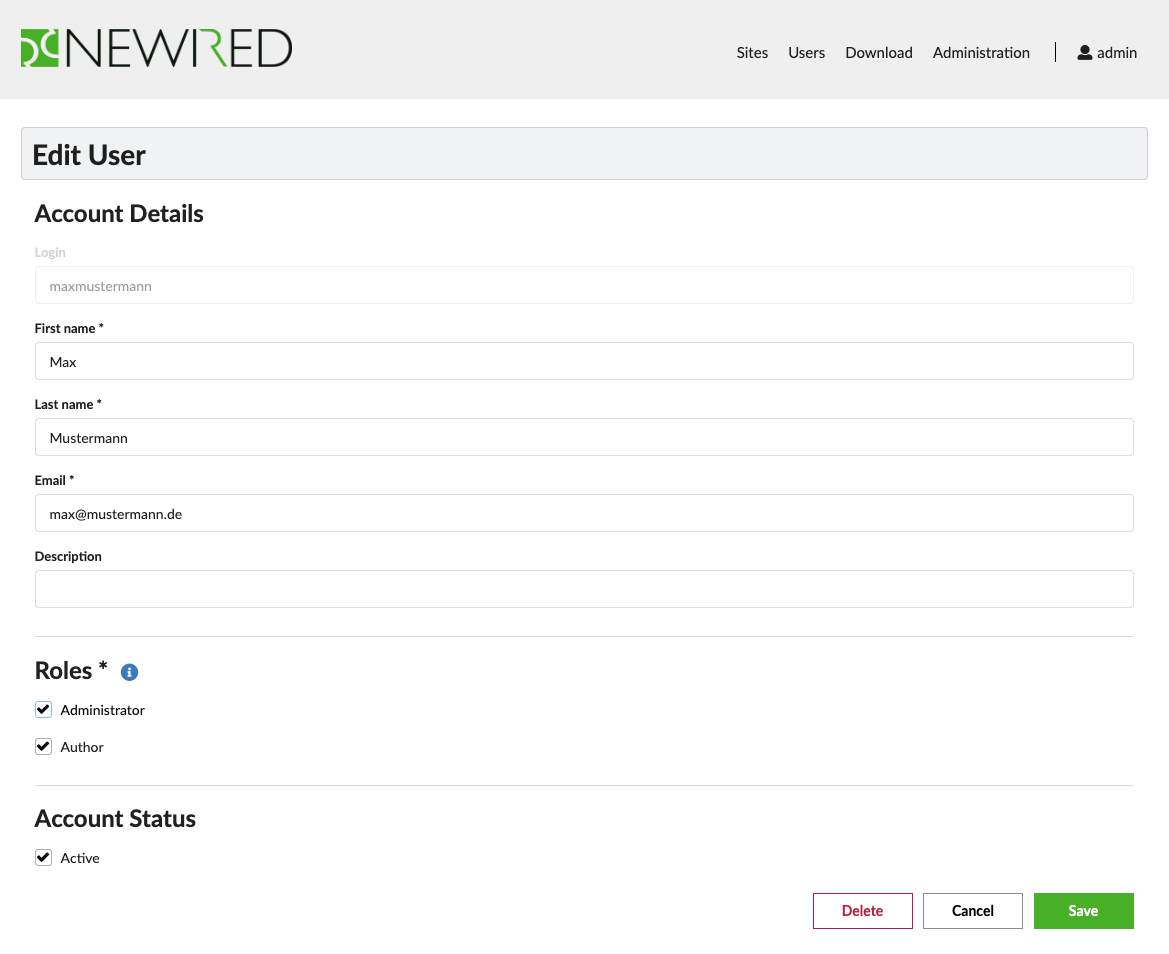
If you change your own roles, Newired signs you out after saving. Sign in again to continue with your updated access.
Reset a User's Password
- Open Users and select the user.
- Under Reset Password, enter a new password.
- Select Save in the password section.
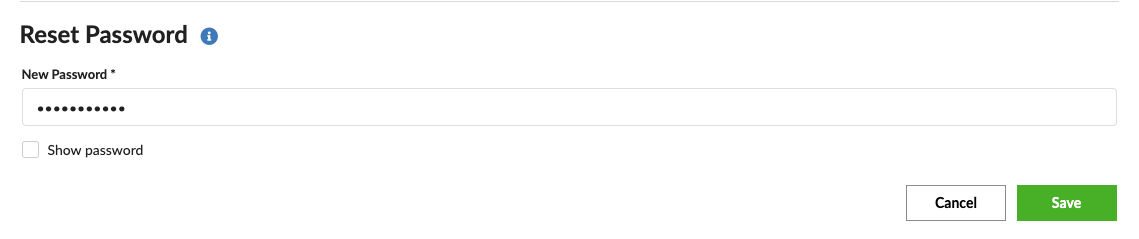
Password changes are saved separately from account details and role changes.
Deactivate or Reactivate a User
- Open the user from Users.
- Clear Active to deactivate the account, or select it to reactivate the account.
- Select Save.
Delete a User
- Open the user from Users.
- Select Delete.
- Confirm the deletion.
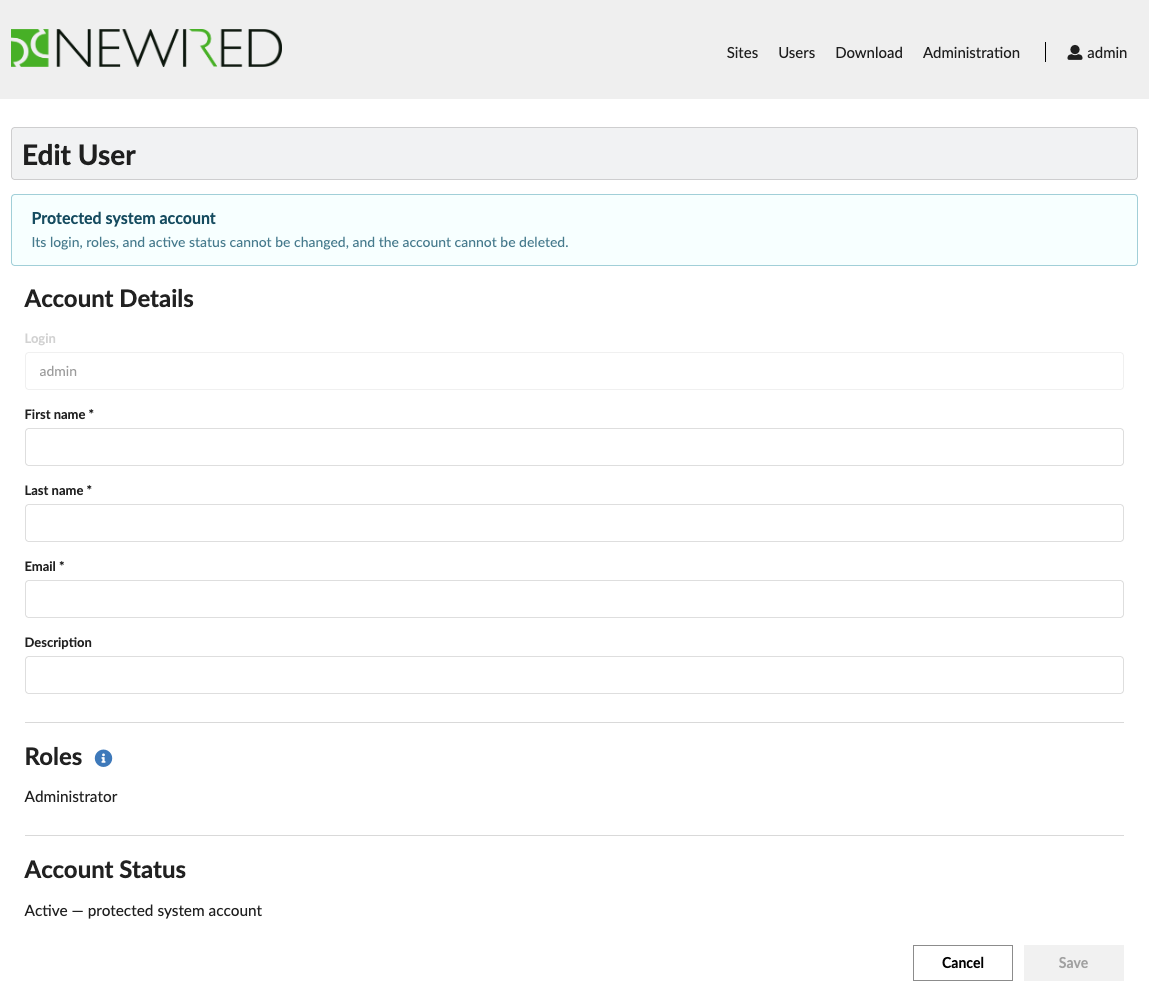
Protected System Account
The user with the login admin is protected. Its login, roles, and active status cannot be changed, and the account cannot be deleted.
If You Cannot Save or Manage Users
- Complete all required account fields.
- Select at least one role.
- Correct any validation message shown below a field.
- If Users is not available or roles are read-only, verify that your account has the Administrator role.
Was this article helpful?
That’s Great!
Thank you for your feedback
Sorry! We couldn't be helpful
Thank you for your feedback
Feedback sent
We appreciate your effort and will try to fix the article