Journeys can be exported as SCORM packages that are compatible with Learning Management Systems (LMS). After importing the Journeys into an LMS, they can be launched directly from there and played in the target application, including tracking of Journey completion.
Exporting Journeys from Portal
To enable exporting Journeys as SCORM packages, set the property "scorm.enabled" to true in the Portal, under Site Advanced Settings, then publish a new version.
In the Portal Publishing tab, open the version menu to access the option to export the SCORM package:
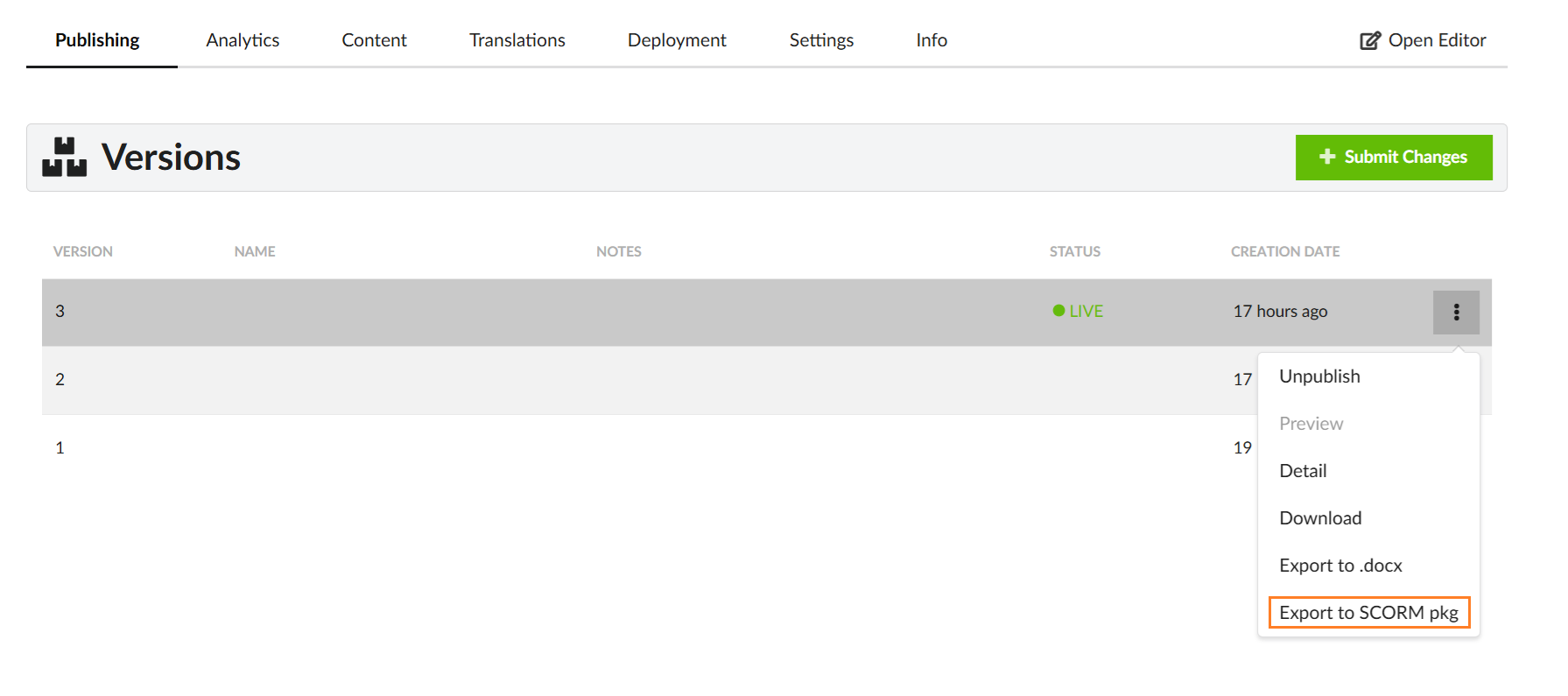
The downloaded ZIP file contains separate ZIP files for each Journey in the package. These files can be imported into LMS platforms that support SCORM-formatted content.
User Identity
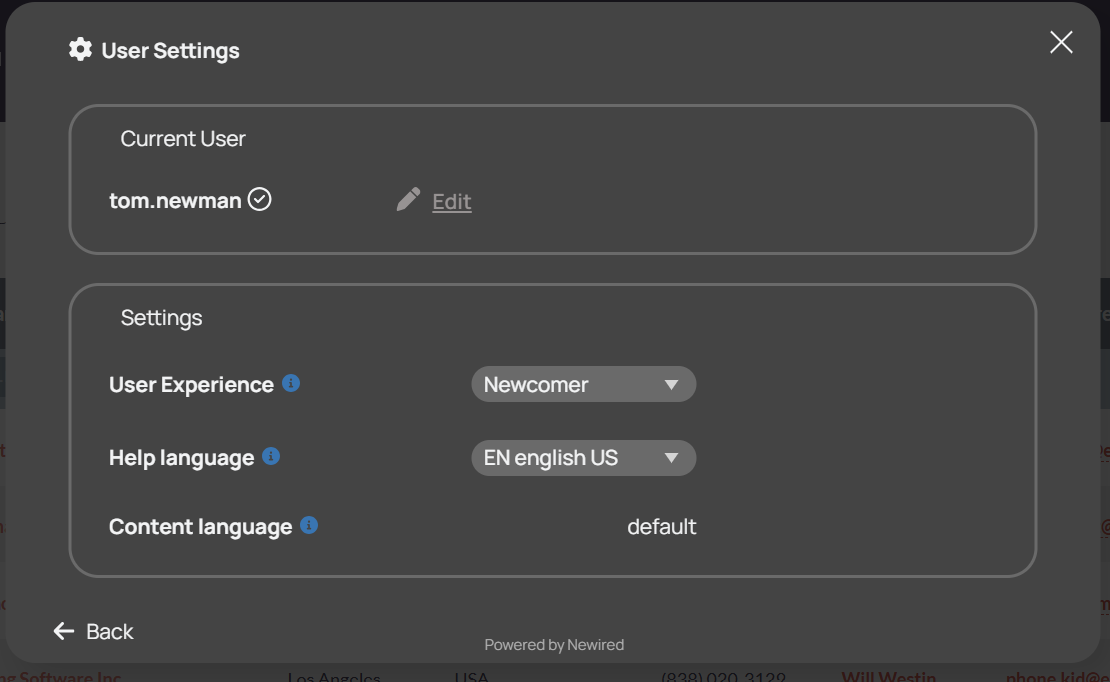
Users can launch Journeys from the LMS without needing to provide their identity for the required login in the Launcher (if the property personalAnalytics.enabled is set to on and user identification is required).
- If a user is not identified in the Launcher User Settings, they can still play Journeys from the LMS without being prompted to set a username, as their identity is automatically passed from the LMS and applied in the Launcher
- If a user is already identified in the Launcher, their existing username is retained and will not be overwritten by their LMS User Identity
Applications with authentication requirements
Journeys launched from the LMS may direct users to the target applications that require user authentication. The login process must be handled properly for both scenarios:
- When a user is already logged in to the target application
- When a user is not yet logged in
To ensure a smooth user experience in both cases, the Journey should include the first Login Step configured with the following settings:
- The Login step is a Callout or Panel informing users that they need to authenticate
- The Step transition is set to "URL change"
- A Visibility rule is applied to this Step, using an Element rule attached to an element on the login page
- The Login Step has no Step URL specified in the Step edit dialog, under the URL tab (the URL field must be left empty)
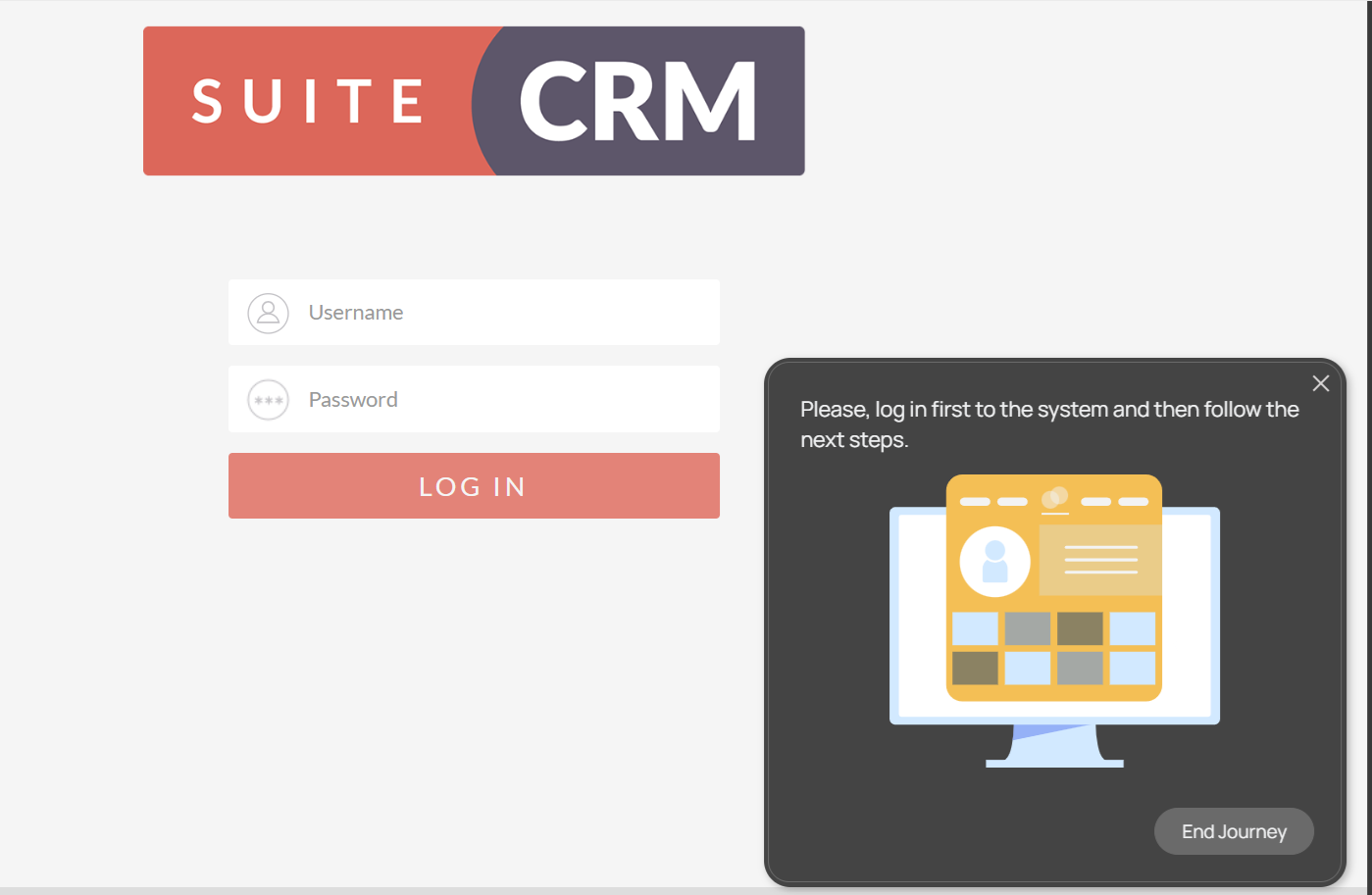
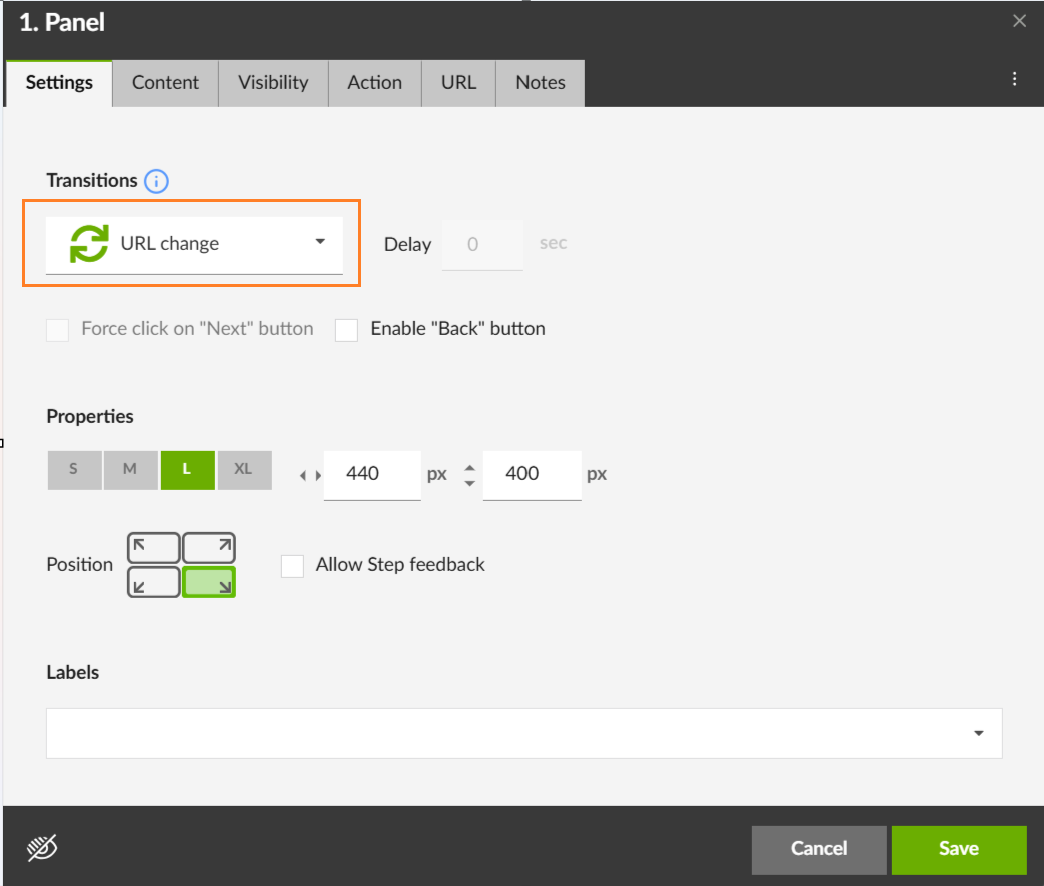
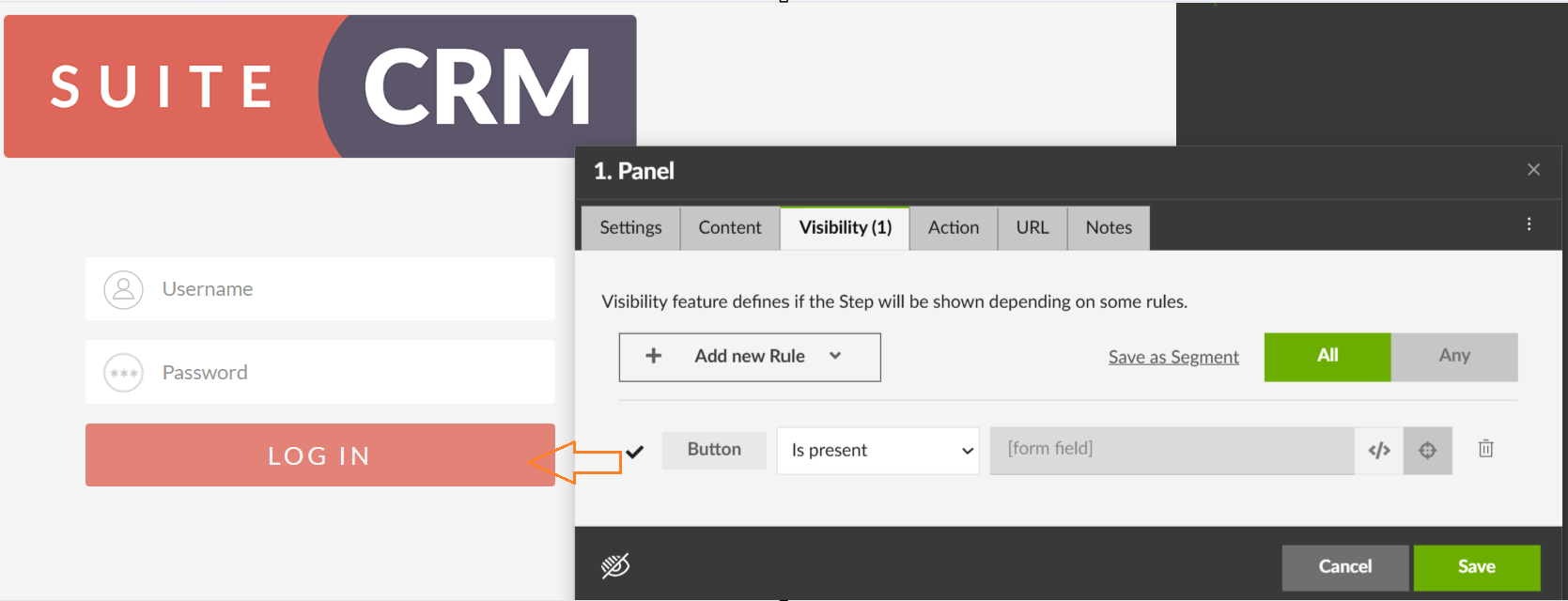
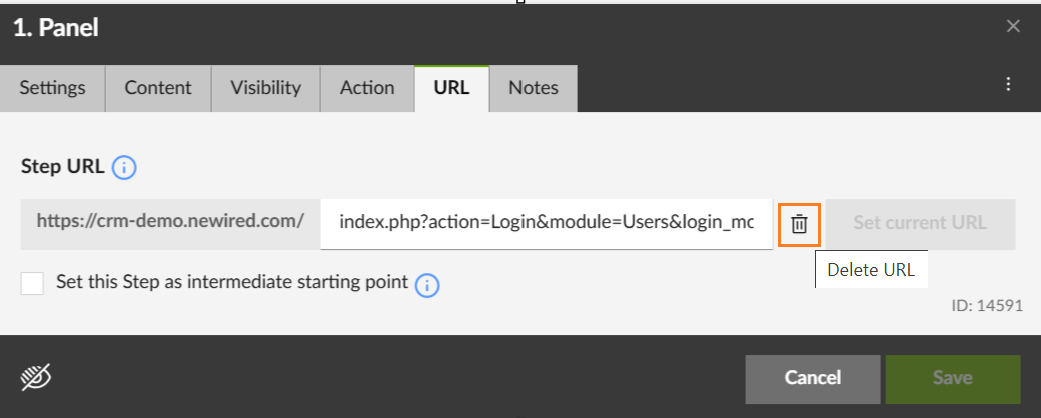
With this configuration for the first Step of the Journey, it will behave correctly in both scenarios:
- If a user is already logged in to the target application, the Login Step will not appear, and the next Step will be played as the first Step
- If a user is not yet logged in, the Login Step will appear. After the user provides their login credentials and accesses the target application, the Journey will continue with the next Step.
Was this article helpful?
That’s Great!
Thank you for your feedback
Sorry! We couldn't be helpful
Thank you for your feedback
Feedback sent
We appreciate your effort and will try to fix the article