Use a Conditional transition when a Journey Step should continue automatically after your application reaches a specific state. The Step stays active while Newired evaluates the configured rules and continues as soon as the required conditions are met.
When to use a Conditional transition
Choose Conditional when progress depends on the state of the page or application instead of a single predefined interaction.
- Continue after a user enters an expected value.
- Continue after all required form fields are completed.
- Continue when a success message or result appears.
- Continue when any one of several acceptable outcomes occurs.
- Continue when a custom property provided by the application reaches an expected value.
Conditional transition rules control when an active Step continues. They are different from Step Visibility rules, which control whether the Step is displayed.
Before you begin
- Open the application page where the Journey Step is displayed.
- Identify the page element, content, or application state that should allow the Journey to continue.
- Make sure the condition can become true while the Step is active.
Configure the transition
Configure the transition from the Settings tab of the Edit Step dialog.
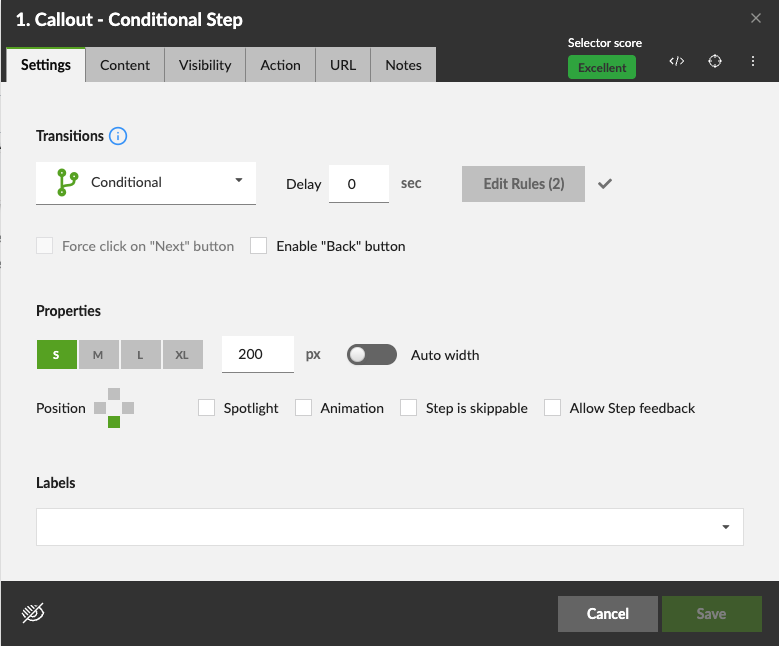
- Open the Journey and edit the Step that should continue automatically.
- Open the Settings tab.
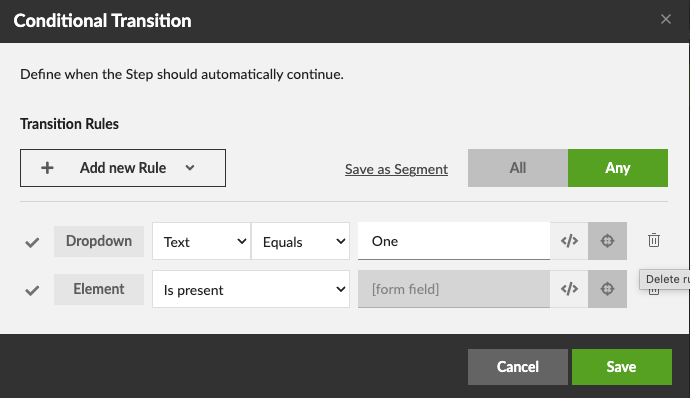
- Select Conditional from the Transition dropdown. The Conditional Transition dialog opens.
- In the Transition Rules section, select Rule and add the first condition.
- Configure the rule by selecting its operator, element, or expected value as required.
- Add more rules when the transition depends on multiple conditions.
- Select All or Any to define how multiple rules are evaluated.
- Select Save to apply the transition rules.
- Set an optional Delay in seconds.
- Save the Step.
After configuration, Edit Rules (n) displays the number of saved rules. Select the button whenever you need to review or change them. A Conditional Step must contain at least one rule before the Step can be saved.
Choose All or Any
All
Select All when every configured rule must be true. For example, continue only when an email address has been entered and the terms checkbox has been selected.
Any
Select Any when one true rule is enough. For example, continue when either a success message or a confirmation panel appears.
How rule evaluation works
- Newired evaluates the rules immediately after the Step is displayed.
- Evaluation continues while the Step remains active and the page state changes.
- The Step remains active while the complete rule set evaluates to false.
- The transition is triggered once when the complete rule set first evaluates to true.
- If a Delay is configured, the delay starts after the rules evaluate to true.
- After the delay, the Journey automatically proceeds to the next Step.
The Delay does not postpone or repeat rule evaluation. It postpones the transition after the required conditions have been met.
Understand the rule status
The indicator next to Edit Rules (n) shows the current evaluation state without requiring you to reopen the rules dialog.
- Evaluating: Newired is still checking one or more rules.
- Valid: The complete rule set currently evaluates to true.
- Invalid: The complete rule set currently evaluates to false, or no rule has been configured.
An invalid status does not always mean that the rules are configured incorrectly. It normally means that the required page or application state has not occurred yet.
Example: Continue after a value is entered
- Add a Content Rule.
- Select the input whose value should be evaluated.
- Select an operator such as Equals or Contains.
- Enter the expected value.
- Save the rules and preview the Journey.
The Step continues when the selected input contains the value required by the rule.
Example: Continue when a success message appears
- Add an Element Rule.
- Select the success message, result panel, or confirmation element.
- Configure the rule to check whether the element is present.
- Save the rules and preview the Journey.
The Step remains active until the application displays the selected element.
Example: Combine multiple conditions
Add one rule for each required page state. Then choose the logical behavior:
- Select All when every required field or page state must be complete.
- Select Any when several different outcomes are acceptable.
Preview both the incomplete and complete states to verify that the Step remains active and continues at the intended time.
Use with other Step behavior
- Conditional Steps support configured Step Actions.
- A Conditional Step can follow a sequence of Steps that use the Multiple transition.
Troubleshooting
The Step does not continue
- Check whether All is selected when Any is intended.
- Review the status indicator next to Edit Rules (n).
- Open Edit Rules (n) and verify each selected element and expected value.
- Confirm that the condition can become true while the Step is active.
- For a Content Rule, verify that the selected element exposes the value or text you expect.
- Preview the Journey and reproduce the expected application state.
The Step continues later than expected
Check the configured Delay. The Journey waits for that number of seconds after the rules evaluate to true.
The status remains invalid
Reproduce the required state on the current application page. If the status does not change, review the selected element, rule operator, expected value, and the selected All or Any behavior.
Was this article helpful?
That’s Great!
Thank you for your feedback
Sorry! We couldn't be helpful
Thank you for your feedback
Feedback sent
We appreciate your effort and will try to fix the article