The Content Delivery Cleanup job permanently removes obsolete published Content Versions. Use it to control Content Delivery storage growth while retaining LIVE and recent versions.
What the job deletes
The job evaluates each Site independently. A published Content Version is deleted only when all of these conditions apply:
- It is older than the configured retention period.
- It is not the currently LIVE Version.
- It is not among the configured number of newest protected versions for that Site.
The newest protected versions are retained even when a Site has no LIVE Version. Deleted versions cannot be restored, downloaded, previewed, or made LIVE.
Prerequisites
- You must be a Newired administrator to configure or run the job.
- Review which published versions your organization must retain before changing the policy.
- Schedule large cleanups outside peak usage periods.
Configure automatic cleanup
- Open Administration and locate Maintenance.
- Find Content Delivery Cleanup and select Configure.
- Enable or disable automatic execution.
- Select a Daily, Weekly, or Monthly frequency.
- Set the execution time. For weekly schedules, also select a weekday. For monthly schedules, select a day from 1 through 28.
- Set Retention period to the minimum age, in days, of versions eligible for deletion.
- Set Protected recent Versions to the number of newest versions retained for each Site.
- Select Save.
The displayed timezone is defined by the server and cannot be changed in this dialog. Retention and protected-version values must be at least 1.
Run cleanup manually
- Find Content Delivery Cleanup and select Run now.
- Review or change the retention period and number of protected recent versions for this execution.
- Verify the scope and permanent-deletion warning.
- Select Run cleanup.
Manual execution uses the saved policy as its starting point. Changes made in the confirmation dialog apply only to that execution and do not change the saved schedule or policy. A manual run remains available when automatic execution is disabled.
Verify the result
Select the arrow beside the job to review the current or most recent execution.
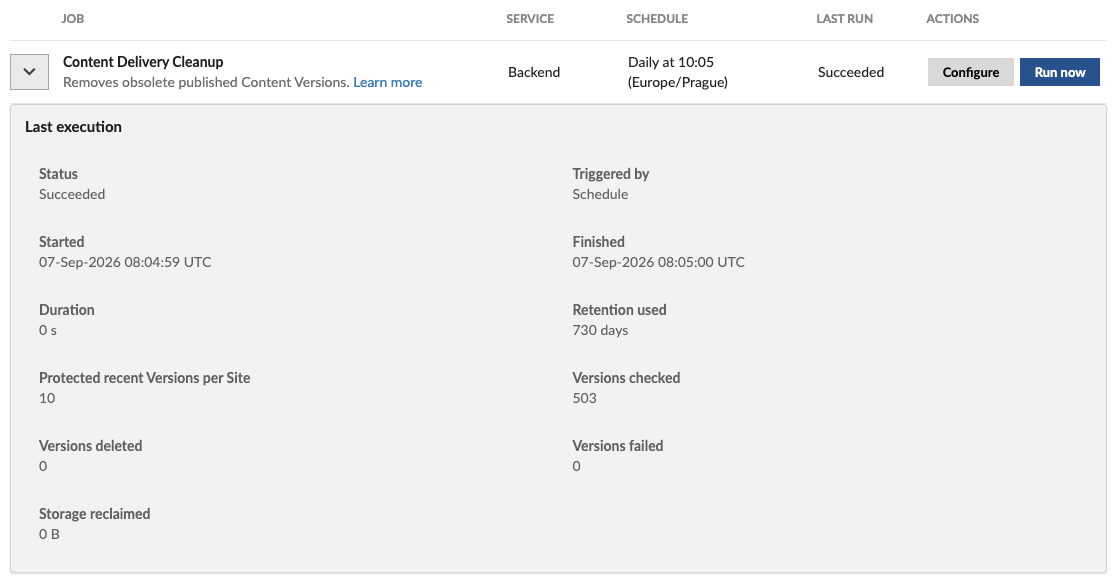
| Field | Meaning |
|---|---|
| Triggered by | Indicates whether the execution was started by the saved schedule or manually by an administrator. |
| Retention used | Minimum age a published Content Version had to reach before it was eligible for deletion. |
| Protected recent Versions per Site | Number of newest published versions protected for every Site during this execution. |
| Versions checked | Number of published Content Versions evaluated against the cleanup policy. |
| Versions deleted | Number of eligible versions permanently removed. |
| Versions failed | Number of eligible versions that could not be removed. |
| Storage reclaimed | Amount of stored Content Delivery data removed by the execution. |
A successful execution can report zero deleted versions. This means the job completed correctly but found no versions eligible for deletion under the policy used.
Only one cleanup can run at a time. While a manual cleanup is running, the Portal monitors it and updates the result when execution finishes.
If the result is not expected
- If no versions were deleted, verify their age and confirm that they are outside both the LIVE and recent-version protections.
- If some versions failed, review Failure information and retry after resolving the reported problem.
- If the job is still running, wait for it to finish before starting another cleanup.
For an overview of all jobs, see Maintenance jobs in Newired Portal. For storage warnings and other ways to reclaim space, see Managing server storage capacity.
Was this article helpful?
That’s Great!
Thank you for your feedback
Sorry! We couldn't be helpful
Thank you for your feedback
Feedback sent
We appreciate your effort and will try to fix the article