In some cases, the browser may block the Newired extension, causing the extension icon to display an “E” in a red square. Follow these steps to allow access to the local network so the extension can function properly.
Chrome:
Go to Browser settings > Privacy and security > Site settings > Additional permissions > Local network access.
Under “Allowed to connect to any device on your local network,” click Add, and enter the website where you want to use the Newired overlay.
Reload the browser to ensure the extension works correctly.
Alternatively, click on this icon near URL bar

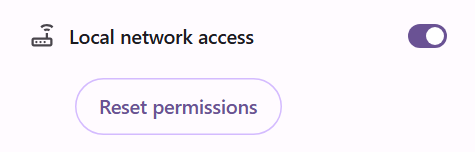
and enable “Local network access” using the toggle button.
Was this article helpful?
That’s Great!
Thank you for your feedback
Sorry! We couldn't be helpful
Thank you for your feedback
Feedback sent
We appreciate your effort and will try to fix the article